
Frequently asked questions
Help with connecting your iPhone and using Herdcats. Some features depend on your app version.
Getting started
What is Herdcats?
Herdcats lets you use Herdr from your iPhone or iPad: browse your spaces and agents, read terminal output, and send messages, keystrokes, dictation, and photos. Save a separate SSH connection for each computer and switch between them in the machine selector. It requires iOS 17 or later. On iPad and the unfolded iPhone Duo, you can keep two panes open side by side.
What is Herdr, and how is it different from Herdcats?
Herdr runs on your computer and organizes the spaces, agents, and terminal panes you work with. Herdcats is the iPhone and iPad app that connects to it. Your agents and their work stay on the computer.
Herdcats can connect to either Herdr runtime: the Herdr TUI (the herdr command) or Herdr Core (the hc command, which the Herdr desktop app installs and runs). See TUI or Herdr Core.
What do I need before I connect?
You need:
- A computer running Herdr: the Herdr TUI with its default session started, or Herdr Core, for example through the Herdr desktop app.
- SSH access enabled on that computer. SSH lets the app connect securely.
- A network connection that lets your iPhone reach the computer.
- The computer's hostname or IP address, SSH port, account username, and password or a supported SSH private key.
Use the computer account that runs Herdr when signing in from Herdcats. Add another computer as its own saved SSH connection in Herdcats; the app connects directly to the selected computer.
Follow How to connect to enable SSH on your computer.
Can I use Herdcats if my computer doesn't have Herdr installed?
No. Herdcats needs Herdr on the computer to show spaces, agents, and panes. SSH access alone is not enough. If SSH connects but Herdr is missing, the app shows “SSH worked. Herdr was not found.”
Install the Herdr TUI or Herdr Core on that computer using the account that you connect with, start it, then try again. If the computer already runs the Herdr desktop app, don’t install the TUI as well; see Herdr Core–only Mac. Herdcats does not install Herdr for you or provide a standalone SSH terminal. If someone else manages the computer, ask them to set up Herdr and SSH access for your account.
Do I need Tailscale?
Tailscale is recommended for connecting your phone and computer, including when you are away from home. Both devices should be on the same Tailscale network. Another network works too, as long as your phone can reach the computer's SSH server.
Do I need any other software on my computer?
Herdr and SSH are required. Terminal, Compose, voice, and photos need nothing else. Herdr Core connections never need anything else. The optional Timeline view, for TUI connections, does: Herdcats Bridge (herdcats-bridge) on the computer you connect to directly. A terminal pane is a scrolling log; Herdcats Bridge reads supported Claude, Codex, Agy, Pi, and Cursor Agent sessions' structured transcripts so Herdcats can show them as readable messages, tool activity, and images instead. It is installed only when you tap Install, runs only while Timeline is open, and everything else works without it. The optional quota-axi tool adds provider quota information.
Signing in and privacy
Can I sign in with a password or SSH key?
You can use your computer account's password or an OpenSSH ed25519 private key. Other private-key formats are unsupported.
Passphrase-protected ed25519 keys are supported with these settings: AES-128-CTR or AES-256-CTR encryption and bcrypt at 1–256 rounds. If your key is rejected, check your app version and ask your administrator to confirm the key format.
Do I have to enter my key's passphrase every time?
Remembering the passphrase is optional. If you choose not to save it, you will need to unlock the key again after restarting the app.
What is the fingerprint the app asks me to approve?
It identifies the computer's SSH server. Checking it helps ensure you are connecting to the intended computer. Compare it with a fingerprint obtained directly from that computer or its administrator before approving it. Herdcats remembers the approved host key for that hostname and port.
Why is a changed host key blocking my connection?
The computer is presenting a different identity from the one you approved. This can happen after a server is rebuilt, but you should verify the reason with its administrator before restoring access. Herdcats blocks the connection, including automatic reconnects. When the changed-key review appears, compare the new fingerprint with one obtained directly from your computer or its administrator through a trusted channel. Confirm that you verified it, then choose “Replace Approved Key and Connect”. Canceling keeps the previously approved key.
Where are my saved sign-in details stored?
Remembered credentials and approved host keys are stored in your iPhone's Keychain. Keep passwords, private keys, and passphrases out of screenshots and support reports.
Is voice dictation always processed on my iPhone?
Herdcats uses Apple's speech recognition and requests on-device processing when available. Availability depends on your device and language, so local processing is not guaranteed. Dictation requires microphone and speech recognition permissions. Review the text before sending it.
Using the app
What are spaces, agents, tabs, and panes?
These are the items in your Herdr session. Spaces organize your work; tabs contain terminal panes; agents run in those panes. Herdcats lets you navigate that work from your phone. In a space, tap a pane in the pane switcher to open it. On iPhone, swipe right from the left edge to go back to the list.
Should I connect with the TUI or Herdr Core?
Each saved connection uses one runtime. Pick it under Herdr in Connection Settings:
- Auto (the default for new machines) checks the computer for both runtimes over SSH and saves an entry for each one it finds. If both are installed it connects with the TUI.
- TUI runs the
herdrcommand over SSH and uses Herdr’s default session. Timeline, phone answers, and model controls need this runtime and Herdcats Bridge. - Herdr Core uses
hc connect. Use it when the computer runs the Herdr desktop app or a standalone Herdr Core. It shows desktop spaces and tabs when their layout is available, plus Other terminals for terminals outside a space. It needs no Bridge.
Herdr Core panes use the same terminal view, keys, Compose, dictation, and photos. Herdr Core can’t receive raw text, so live typing sends key presses; for shifted symbols and non-ASCII characters the app asks you to use Compose. A Herdr Core connection never falls back to the TUI.
A computer saved with both runtimes appears once, as TUI + Herdr Core, and opens with the runtime you used last. Long-press it on the connection screen to choose Connect with TUI or Connect with Herdr Core, or pick the runtime from the machine menu. Connections saved before Herdr Core support stay TUI.
How do split panes work on iPad and the iPhone Duo?
On iPad and the unfolded iPhone Duo, Spaces and Agents show the list on the left and the selected pane beside it. On iPad the tab switcher is a pill at the bottom of the list; on the Duo it stays at the screen edge. Hide the list with the sidebar button, and swipe right from the leading edge to bring it back.
To open two panes, use a row’s menu (Open on Left, Open on Right, or Replace), the Split button, or drag a row onto the left or right half of the detail area. Each pane has its own header with an L or R tag, and the list shows the same tags next to open rows. Tap a pane to focus it; the keyboard moves with focus. Drag the divider to resize it to a third, half, or two thirds.
In Spaces, expand a space to see its tabs and panes. Folding the Duo or narrowing the window keeps the pane you were using open. The iPhone layout is unchanged: one pane at a time, portrait only. iPad supports all orientations.
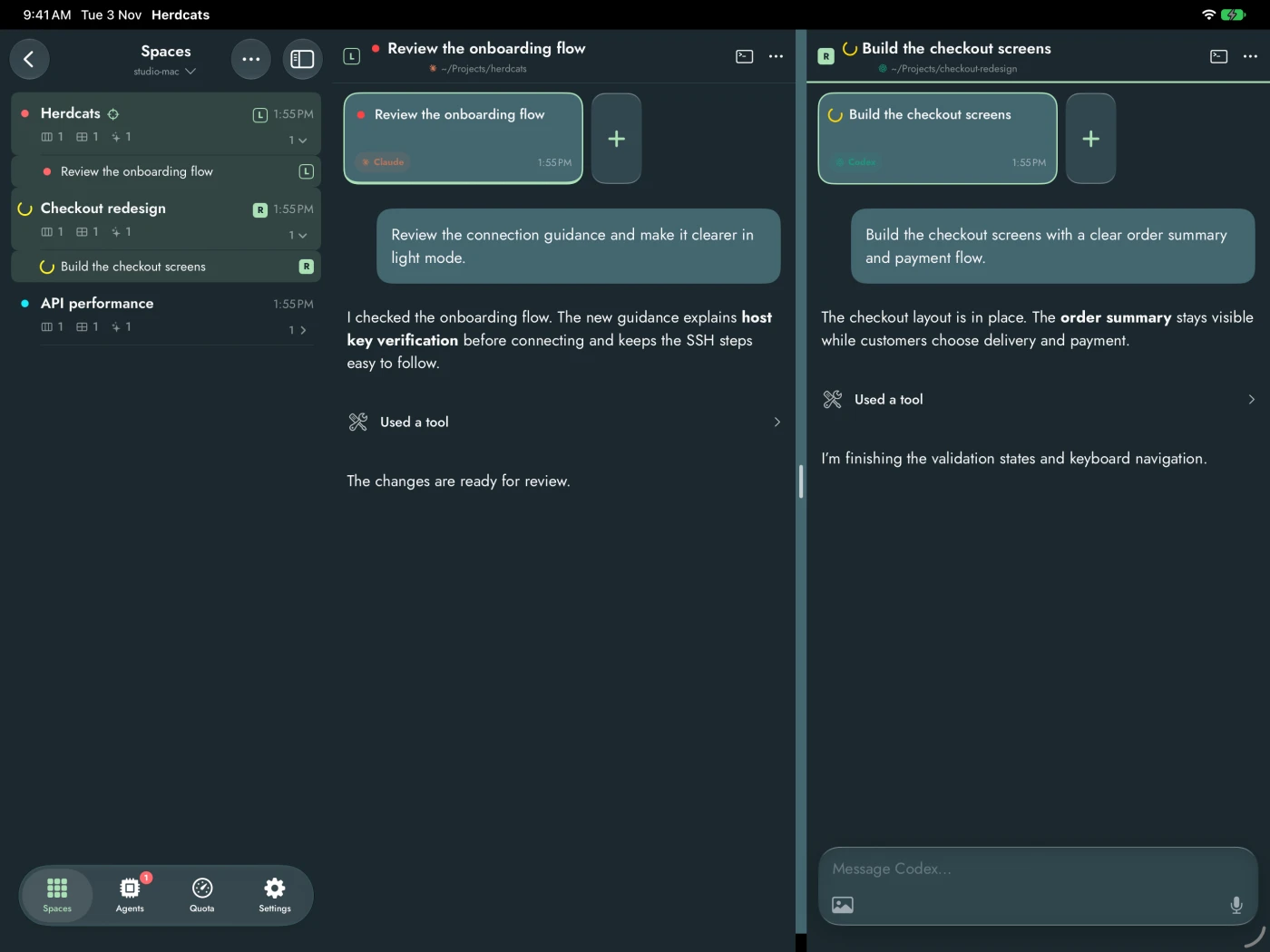
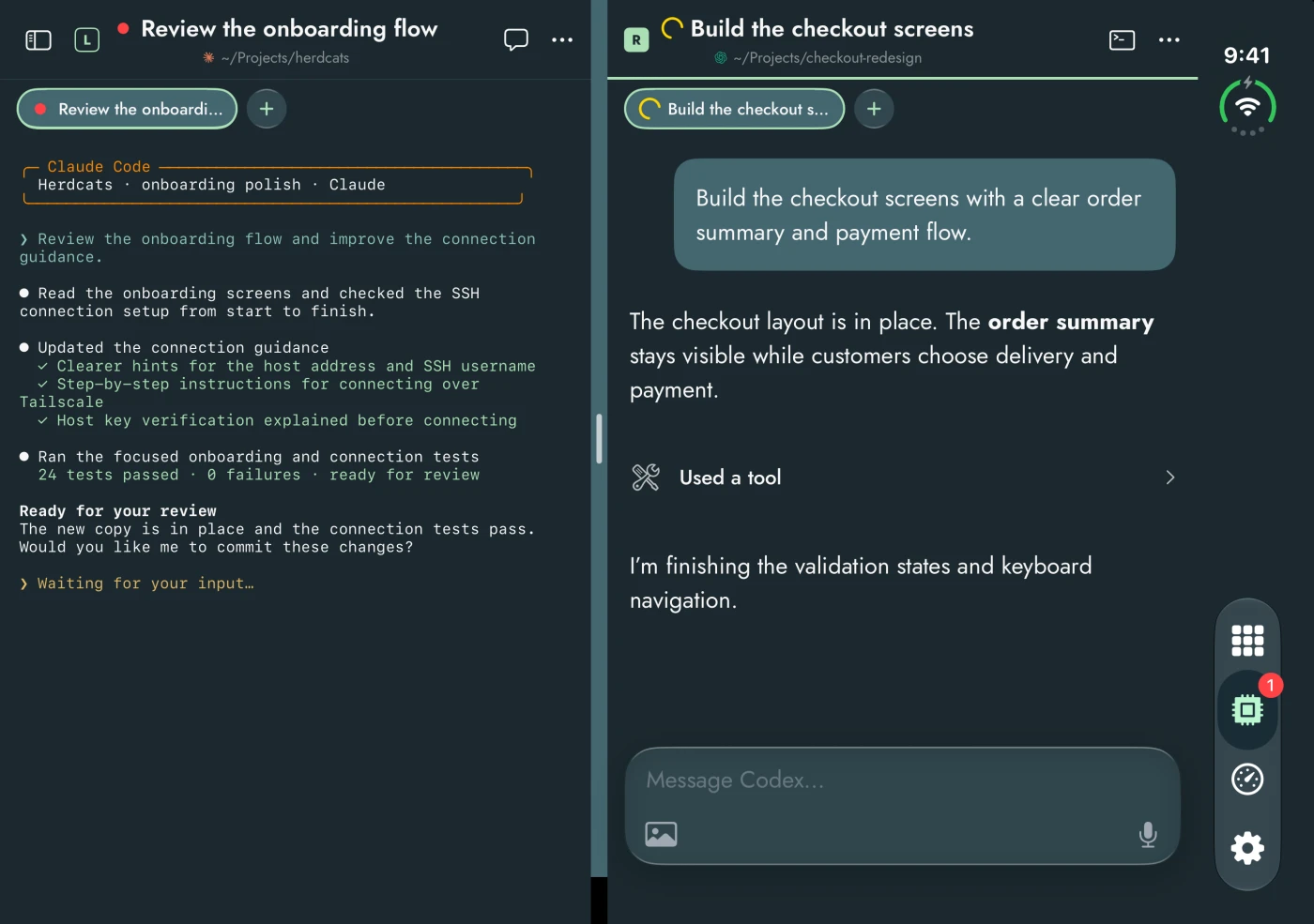
Dark-mode simulator captures with sample sessions, 3 November 2026.
How do Timeline, Terminal, and Compose fit together?
Timeline and Terminal are two ways to read the same agent session. Compose is where you draft a message, and works with either view.
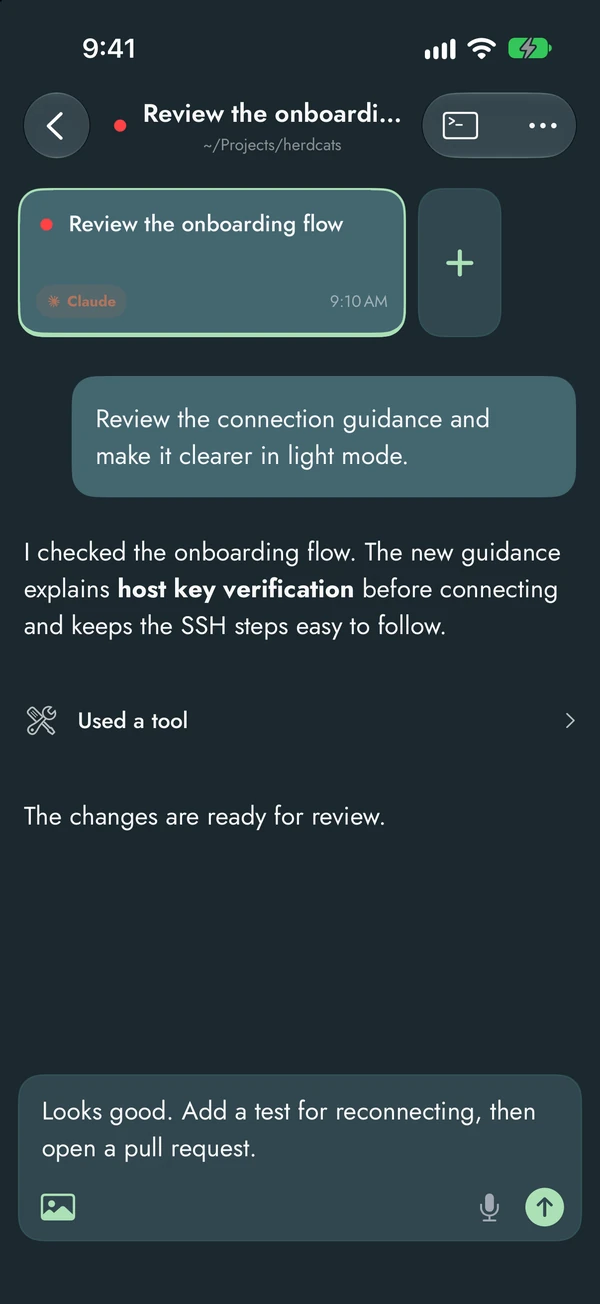
- Timeline: read messages and tool activity in a conversation layout that follows your app theme. For supported agents, use the terminal or speech-bubble button at the top to switch views.
- Terminal: see the agent’s own terminal UI. Tap its output to type directly, or use the toolbar for special keys. After you scroll back into history, tap the round down-arrow button to jump to the newest output.
- Compose: write and review a message before tapping Send. Tap the compose button in the toolbar to open it. Add photos with the attachment button.
- Voice: tap the microphone to dictate, then the checkmark to finish recording. The transcript opens in Compose for you to edit and send.
Show Compose by Default keeps the message field visible. It is on by default; change it in Settings or the pane’s menu. Turning it off gives you the compact toolbar when you are not editing a draft.
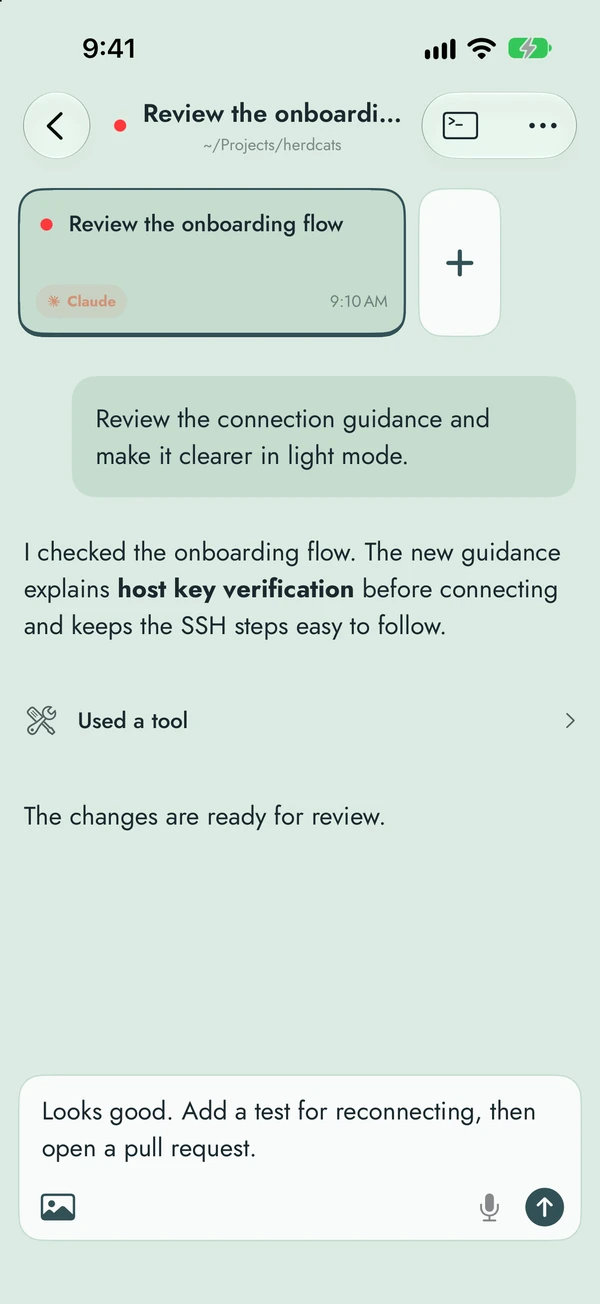
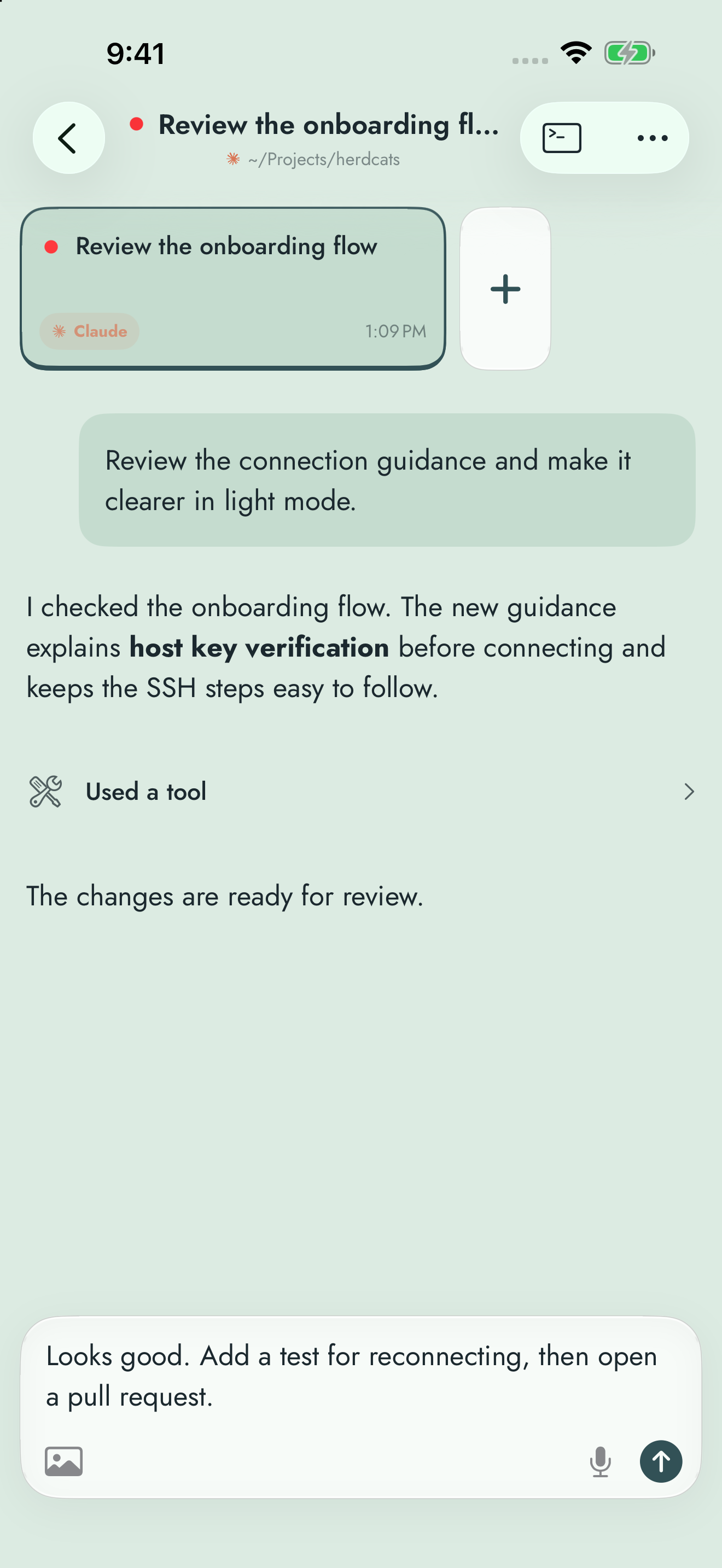
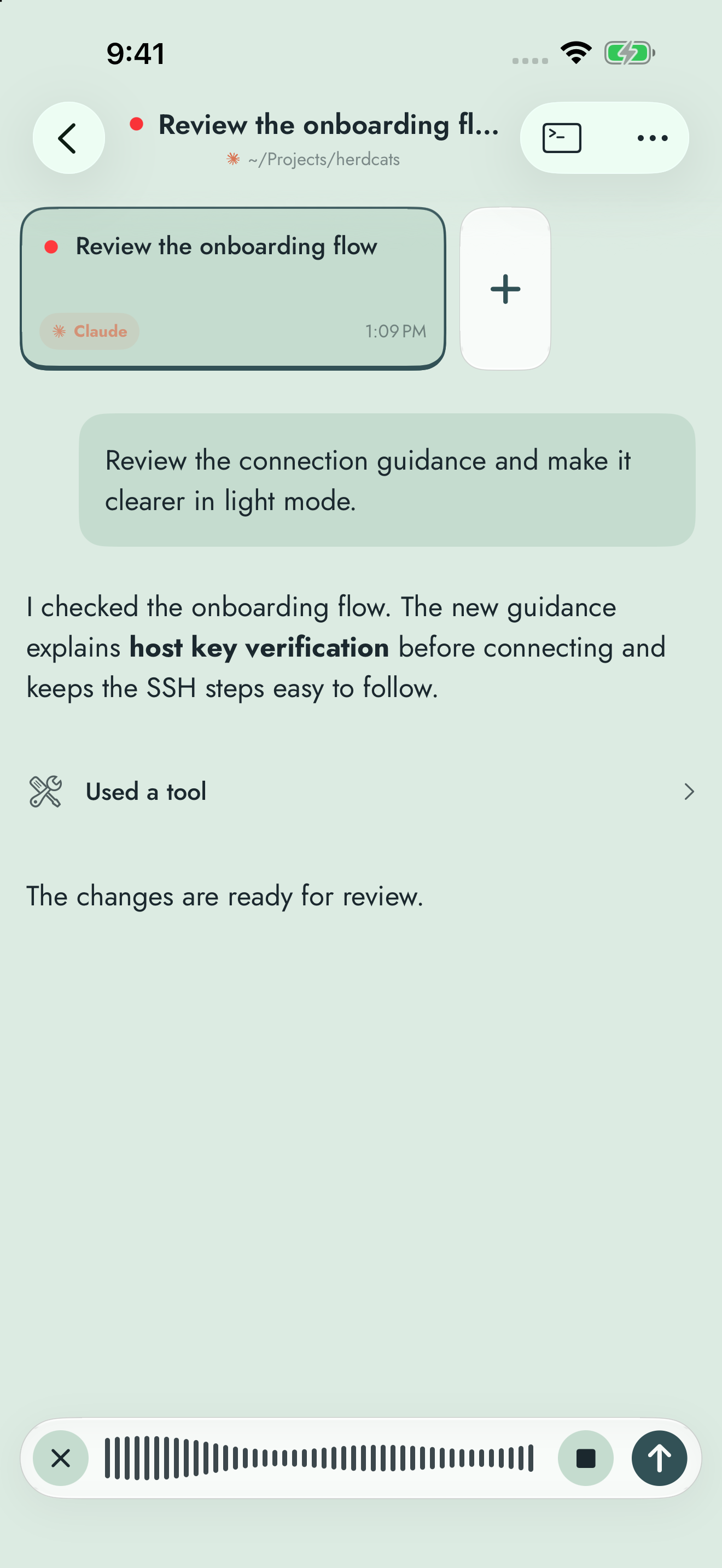
Screenshots use demonstration sessions captured on 27–28 October 2026. Tap an image to open it at a larger size.
What is Herdcats Bridge, and why does Timeline need it?
Timeline turns an agent session into a phone-friendly conversation: readable messages, tool activity, and images. A terminal pane can't provide that — its output is a scrolling log. Herdcats Bridge (herdcats-bridge) is a small program on your SSH computer that reads the session's structured transcript and sends it to your phone over the same SSH connection, only while Timeline is open.
It is optional. Terminal, Compose, voice, and photos never need it, and Timeline asks before installing anything. Reading history requires no sudo, background service, or agent hooks. The current app installs Herdcats Bridge 0.5.0, supporting Claude, Codex, Agy (Antigravity CLI), Pi, and Cursor Agent (the Cursor CLI). Pi also requires a separately enabled Herdcats extension. Other agents keep using Terminal and Compose.
On each SSH computer, tap Install in the Bridge setup sheet. Confirm the displayed host, account, port, and installation path. If you prefer, run the manual command shown in that sheet on the same computer, then tap Check again. To defer setup, choose Use Terminal for now.
The current app requires Bridge 0.5.0 or later. For an older installation, choose Upgrade Herdcats Bridge when offered in the setup sheet or pane menu. Upgrades require an explicit action; manual replacements use --replace. Downloads are checksum-verified. See Bridge troubleshooting if setup fails.
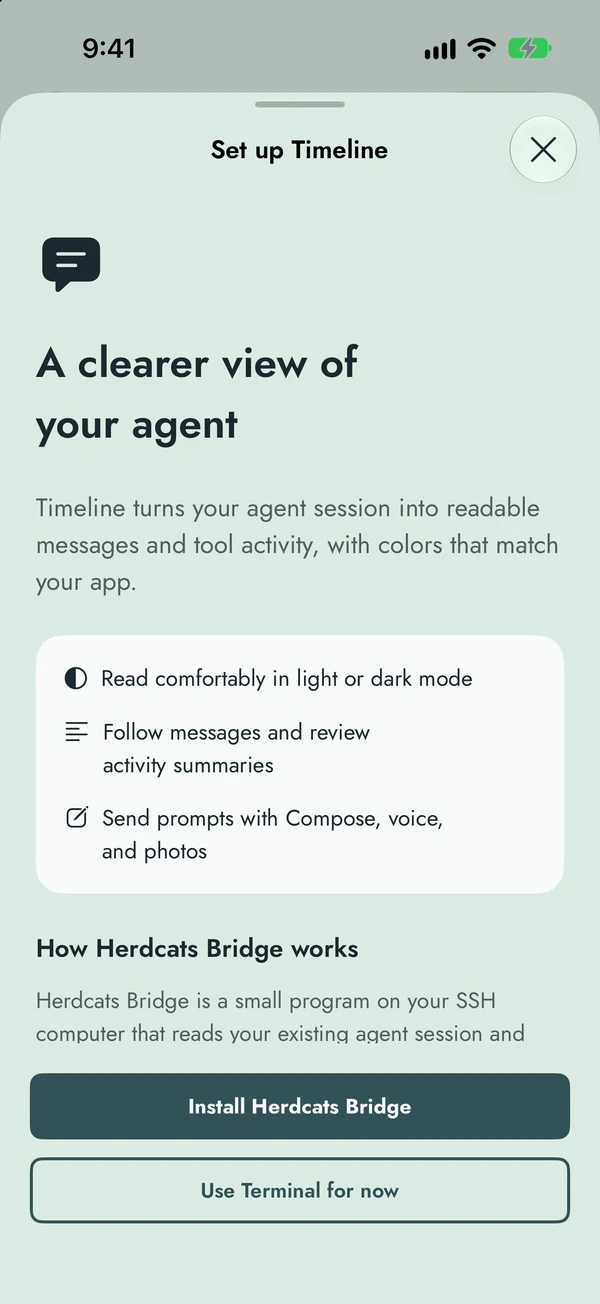
If you enabled phone answers, remove them from the pane’s phone-answer settings before deleting ~/.local/bin/herdcats-bridge. Otherwise, deleting that binary removes Bridge. Phone-answer setup is a separate opt-in, explained below.
How do I use Pi with Herdcats Bridge?
Install or upgrade to Bridge 0.5.0 on your SSH computer, then enable the Herdcats Pi extension in the Pi session you want to use. The integration supports Pi 1.4.0. Installing the Bridge binary does not install or enable the extension.
Download herdcats-pi-extension.tar.gz and SHA256SUMS from the Bridge 0.5.0 release. Verify the archive against the checksums with sha256sum or shasum -a 256, then extract it. Keep herdcats/index.ts and herdcats/runtime.mjs together. Start Pi with pi -e /absolute/path/to/herdcats/index.ts, using your extracted path. For an existing session, place both files in ~/.pi/agent/extensions/herdcats/ (or $PI_CODING_AGENT_DIR/extensions/herdcats/), then use /reload in that Pi session. Return to Herdcats and tap Check again.
Pi supports conversation history, streaming, plain messages, cancellation, model and thinking controls, and supported extension confirmation, selection, and text-input dialogs. Custom and editor dialogs, slash commands, authentication, and unsupported prompts stay in Terminal. Grant project trust at your computer before using phone controls.
Does Herdcats support Cursor Agent?
Yes. Bridge 0.5.0 supports Cursor Agent, the Cursor CLI, in a Herdr pane. Open that pane in Herdcats to read its conversation and send plain messages when the agent is idle and its composer is empty. This integration controls the CLI session running on your computer.
Supported shell approvals offer Run once and Skip. Question forms are answered one question at a time. Model and effort controls are verified on Cursor build 2026.10.22-27dcf5f; changes also become Cursor’s defaults for new sessions. Slash commands and unsupported controls stay in Terminal.
How do I answer approvals and questions from my phone?
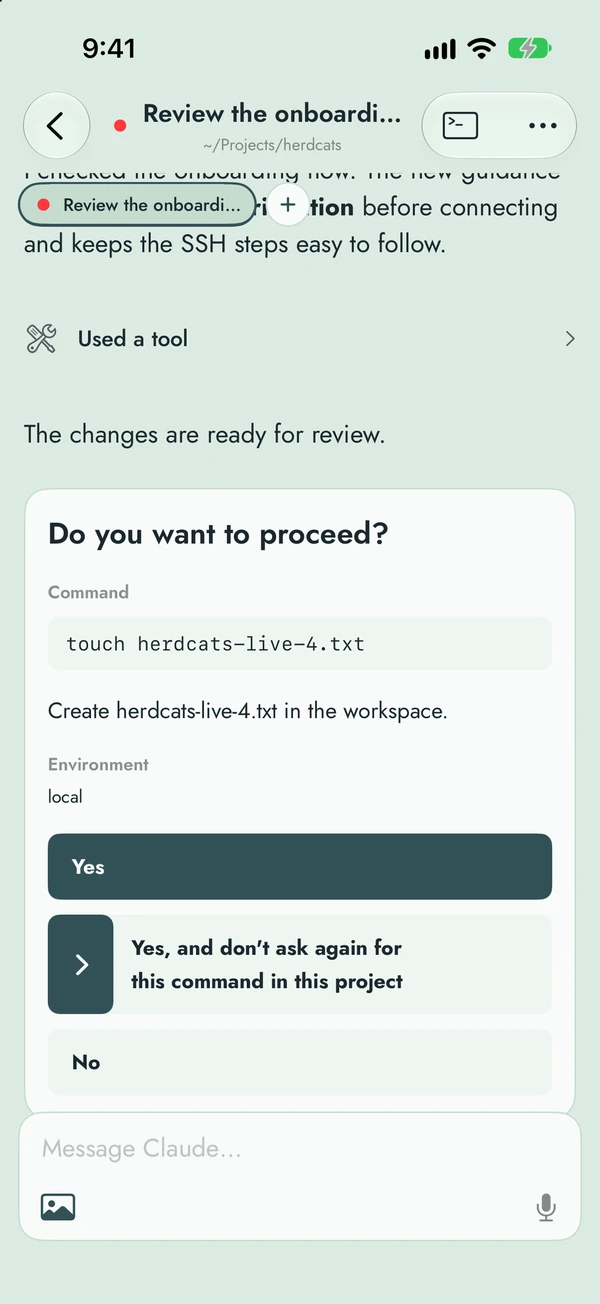
With a compatible Bridge, Timeline can show supported approval and question cards. Read the request, choose an option or enter an answer, then submit it. Available actions depend on the agent and the request. If a prompt cannot be verified or is unsupported, answer it in Terminal.
Claude approvals and questions, and Codex approvals, require the optional phone-answer recording hook. When Timeline offers Set up phone answers, review the setup sheet and confirm. It adds a hook to that agent’s settings on the connected computer and keeps a backup. Codex also asks you once at your desk to trust the new hook. Codex question cards do not require this hook. Agy and Cursor use supported native dialogs; Pi uses its separately enabled extension. They do not use the Claude/Codex recording hook.
The hook records requests locally so your phone can display them; it does not approve them. Use Repair phone answers if offered for an outdated setup, or Remove phone answers to remove the Herdcats hook and delete its recorded requests. Other hooks are left in place.
Can I change the model or reasoning effort?
Bridge 0.5.0 includes model and reasoning-effort controls for supported Claude, Codex, Agy, and Cursor sessions, plus model and thinking controls for Pi with its extension enabled. Availability depends on the agent version and the controls reported by the connected Bridge.
When available, choose from the models and effort levels reported by your agent. Changes require the agent to be idle with an empty input box. If the control is unavailable, wait for the current turn to finish or use Terminal. Codex changes apply to the current session; Claude and Cursor changes can become defaults for new sessions, Agy model choices may persist across sessions, and Pi changes apply to the connected native session.
Why does Codex Timeline ask me to turn off Codex's shared background server?
Since Codex 0.157, Codex runs sessions inside one shared background server. That server only remembers the terminal that started it, so Herdr can't tell which pane a Codex conversation belongs to. Herdcats never guesses: showing the wrong conversation is worse than showing none, so Timeline says the session isn't identified.
There are two ways to fix it:
- Start Codex with
codex --no-daemonin the panes you want in Timeline. - Turn the shared server off for all sessions: in a Codex pane's Timeline, tap Turn off Codex's shared daemon. Herdcats Bridge sets
daemon_auto_start = falsein~/.codex/config.toml(or$CODEX_HOME/config.tomlif you setCODEX_HOME), keeps a backup, and changes nothing else in the file. If the server is already running, it stops it after you confirm. Codex sessions using it disconnect; start them again withcodex, orcodex resumeto continue a conversation.
Turning off the shared server gives up:
- Codex sessions surviving a closed terminal or dropped SSH connection. Herdr already keeps your panes running, so this is usually covered.
- Slightly faster Codex startup, since setup happens per session again.
- Features that need the shared server, such as forking an open conversation.
- Controlling those Codex sessions from ChatGPT's Codex Remote. If you rely on Codex Remote, keep the server on and use
codex --no-daemononly in the panes you want in Herdcats. - Codex's self-updating background package. The
codexyou installed is used instead.
Undo any time with codex features enable daemon_auto_start.
A brand-new Codex session appears in Timeline after its first message. Codex starts the session when you send one.
Does Herdcats run agents on my iPhone?
No. Agents run on your computer. Keep that computer running and reachable when you want to view their output or send input.
Can I send photos?
Yes, to panes on the computer you connected to directly. Uploaded photos stay on that computer until you remove them manually; the app does not remove them automatically. Their location is ~/.cache/herdrcat/attachments.
What happens when I switch apps or lock my phone?
Herdcats pauses output refreshes while it is in the background. Return to the app to see refreshed output. Timeline keeps the conversation it already loaded for that pane while it reconnects. Leaving the app does not itself stop the agents running on your computer.
If the connection drops, a status banner appears at the top. Output you already loaded stays on screen, with a card underneath that explains what happened and offers Retry. See Offline and Retry.
Can I choose a different Herdr session?
Not currently. TUI connections use Herdr's default session, which must be running and accessible to the account you sign in with. Herdr Core connections show the terminals Herdr Core runs for that account.
How do I switch between computers?
Save an SSH connection for each computer in Herdcats, then choose one from the machine selector. Each connection has its own host, port, account, and credentials; the app connects directly to the selected computer. You can give saved connections names and arrange their order. Auto-connect uses the last-used computer.
Install Herdr and enable SSH on each computer. If a computer has both the TUI and Herdr Core, it still appears once; see TUI or Herdr Core. Bridge, phone-answer setup, photo uploads, and quota information belong to the computer you are connected to.
How do I add another machine?
Add a saved connection in Herdcats with that computer’s SSH hostname or IP address, port, username, and password or supported private key. Give it a name if you want an easier way to recognize it, then connect and verify its host key.
Follow How to connect for each computer. Herdr’s own connected-machine list is separate from Herdcats’ saved SSH connections.
How to connect
- Set up Herdr on your computer with the account you will use in Herdcats: install the Herdr TUI and start its default session, or run Herdr Core, for example through the Herdr desktop app.
- Enable SSH access using the setup guide for your computer below. On a Mac, follow Enable Remote Login.
- Connect your iPhone and computer to a network where they can reach each other. Tailscale is recommended.
- In Herdcats, leave Herdr on Auto (or choose TUI or Herdr Core), then enter the hostname or IP address, SSH port, username, and password or supported private key.
- Compare the server fingerprint with one obtained directly from your computer or its administrator, then approve it only if they match.
Using more than one computer? Save a separate SSH connection for each, then switch with the machine selector.
Setting up SSH on macOS
Follow these steps to enable SSH access on your Mac and generate an ed25519 key for Herdcats.
Before you start: install Herdr on the Mac and keep a Herdr session running, or run the Herdr desktop app for Herdr Core. Herdcats drives the herdr or hc command over SSH.
- 1
Enable Remote Login
Open System Settings on your Mac:
Apple Menu () → System Settings → General → Sharing → turn on Remote Login.
Ensure your user account is permitted under “Allow access for”.
- 2
Generate an Ed25519 Key & Authorize It
Open Terminal on your Mac and run this one-line command:
ssh-keygen -t ed25519 -f ~/.ssh/herdcats_key && cat ~/.ssh/herdcats_key.pub >> ~/.ssh/authorized_keys && chmod 700 ~/.ssh && chmod 600 ~/.ssh/authorized_keys - 3
Transfer the Private Key to Herdcats
You can bring the private key into Herdcats using either method:
- 4
Find Host & Username
In Terminal on your Mac, find your connection details:
- Username: Run
whoami(e.g.alice). - Host: If using Tailscale (recommended), run
tailscale ip -4or use your MagicDNS hostname (e.g.mac-mini.tailnet-name.ts.net). Otherwise use your local network IP (e.g.192.168.1.50). - Port: Default is
22.
- Username: Run
Setting up SSH on Linux
Instructions for Ubuntu, Debian, Fedora, Arch Linux, and remote cloud VMs (AWS, GCP, Hetzner).
- 1
Ensure OpenSSH Server is Installed & Running
Run the package manager commands for your distribution:
# Ubuntu / Debian sudo apt update && sudo apt install openssh-server -y sudo systemctl enable --now ssh # Fedora / RHEL sudo dnf install openssh-server -y sudo systemctl enable --now sshd # Arch Linux sudo pacman -S openssh sudo systemctl enable --now sshd - 2
Generate & Authorize Key
Generate an ed25519 keypair and ensure correct permissions:
ssh-keygen -t ed25519 -f ~/.ssh/herdcats_key && cat ~/.ssh/herdcats_key.pub >> ~/.ssh/authorized_keys && chmod 700 ~/.ssh && chmod 600 ~/.ssh/authorized_keys - 3
Check Firewall & herdr Binary Location
If you use a firewall like UFW:
sudo ufw allow sshEnsure the
herdrCLI binary is installed and reachable in your user’sPATH,~/.local/bin, or/usr/local/bin.
Setting up SSH on Windows / WSL
For developers working on Windows, connecting via Windows Subsystem for Linux (WSL2) is the recommended path.
- 1
Option A: WSL 2 (Recommended)
Open your WSL terminal (e.g. Ubuntu) and configure OpenSSH server:
sudo apt install openssh-server -y sudo service ssh start ssh-keygen -t ed25519 -f ~/.ssh/herdcats_key cat ~/.ssh/herdcats_key.pub >> ~/.ssh/authorized_keys chmod 700 ~/.ssh && chmod 600 ~/.ssh/authorized_keys - 2
Option B: Native Windows OpenSSH Server
Open PowerShell as Administrator:
Add-WindowsCapability -Online -Name OpenSSH.Server~~~~0.0.1.0 Start-Service sshd Set-Service -Name sshd -StartupType 'Automatic'Authorize your public key in
%USERPROFILE%\.ssh\authorized_keys.
SSH Key Management & Security Architecture
Understanding how Herdcats handles authentication, key masking, and Keychain isolation.
Why Ed25519?
Ed25519 is the key type Herdcats supports. The keys are short and quick to generate, and OpenSSH has used them by default for years.
Passphrase Notice
Herdcats supports passphrase-protected OpenSSH ed25519 keys using AES-128-CTR or AES-256-CTR with bcrypt (1–256 rounds). Set a passphrase when ssh-keygen prompts, then enter it when importing your key. Optionally remember it on this device to reconnect after restarting the app.
On-Device Keychain
Remembered passwords and keys are stored exclusively in the iOS Keychain on your physical device. Private keys and key passphrases stay on your device. SSH uses the key to sign authentication requests; passwords are sent only through the encrypted SSH connection.
Shoulder-Surfing Protection
Herdcats masks private key text by default, displaying only the last 2 lines for verification. Tap the Show toggle if you need to inspect the full key.
Troubleshooting & Common Issues
Quick resolutions for connection, authentication, and environment issues.
“Authentication failed — check username and password/key”
The SSH server rejected authentication (allAuthenticationOptionsFailed).
- Verify the matching public key shown in Herdcats is in
~/.ssh/authorized_keys. - Check permissions on your remote host:
chmod 700 ~/.ssh && chmod 600 ~/.ssh/authorized_keys - Ensure you imported the private key (e.g.
herdcats_key), not the.pubpublic key.
“Host key verification failed / changed”
Herdcats pins remote host key fingerprints in Keychain on first connect (Trust On First Use). If your server was reinstalled or rebuilt, the key will fail closed to prevent MITM attacks. Verify the change directly with your computer or its administrator before restoring access. The app shows both the previously approved and new fingerprints. After verifying the new fingerprint through a trusted channel, confirm verification and choose “Replace Approved Key and Connect” to update trust for that hostname and port.
“Timed out reaching the host” / Host unreachable
Herdcats waits 10 seconds for the SSH server to answer. If nothing answers, it shows “Timed out reaching the host — check the IP address and that SSH (Remote Login) is enabled on the machine.”
- Check the hostname or IP address in Connection Settings. With Tailscale, the MagicDNS name from the Tailscale app is the most reliable choice.
- Confirm SSH is on: on a Mac, Remote Login; on Linux,
systemctl status ssh(orsshd). - Make sure the computer is awake and both devices are connected to Tailscale, or on the same Wi-Fi subnet without Tailscale.
- “Connection refused” is different: the computer answered, but nothing is listening on that port. Check the port and that SSH is running.
“herdr: command not found”
For TUI connections, Herdcats looks for herdr in PATH, ~/.local/bin, /opt/homebrew/bin, and /usr/local/bin. Ensure Herdr is installed on the remote machine. If the machine runs the Herdr desktop app instead, see the next item.
“Herdr was not found” on a Mac that runs the Herdr desktop app
The desktop app installs Herdr Core (hc), not the Herdr TUI. A connection saved as TUI, including every connection saved before Herdr Core support, looks only for herdr and reports “SSH worked. Herdr was not found.” Installing the TUI doesn’t help: it starts a separate Herdr that doesn’t show the desktop app’s terminals.
Workaround: open that connection’s settings, set Herdr to Herdr Core (or Auto), and tap Connect. Herdcats adds a Herdr Core entry for the same machine and sign-in, and keeps the TUI entry. The machine then shows TUI + Herdr Core and opens with the runtime you used last. The reverse also happens: a Herdr Core connection to a machine with only the TUI can fail with a generic closed-connection error; switch it to TUI or Auto the same way.
The app shows an offline card with Retry
The SSH connection dropped or the computer stopped answering. The banner at the top shows the connection status; the card under the content explains what failed. Output and Timeline messages you already loaded stay visible, and drafts in Compose are kept.
- Tap Retry once the computer is reachable again. If Retry keeps failing, work through Timed out reaching the host.
- A running-cat loader means Herdcats is still waiting for a reply. An error with Retry appears only after a request fails.
- Quota shows setup steps when
quota-axiisn’t installed, and an error with Retry when it fails.
“Timeline says Herdcats Bridge is missing or could not be installed”
Timeline needs optional Herdcats Bridge (herdcats-bridge) on the computer your phone connects to directly — without it, that view falls back to Terminal, which stays fully usable. Tap Install in the setup sheet, or copy the manual install command shown there and run it on that computer, then tap Check again. For an existing installation, tap Upgrade; manual upgrades require --replace. If installation cannot be verified, choose Check installation; Terminal and Compose keep working without Herdcats Bridge.
Timeline says “Send a message to start” or “Codex session not identified”
Send a message to start: Codex starts a session only when you send its first message. Send one, and Timeline appears once Codex replies.
Codex session not identified: if Timeline says the shared background server is running, follow Codex background server, then restart Codex in that pane.
If the server is already off, the pane's session reference is invalid or matches more than one session. Restart Codex in that pane, then tap Check again.
Codex sessions started before you turned the server off keep using it, and stop working once it is stopped. Quit Codex in that pane and run codex resume to continue the conversation in Timeline.